
Rob Run loot, heist objectives and security markers
Understand loot value filters, cameras, vault doors and objective markers without confusing information with access.
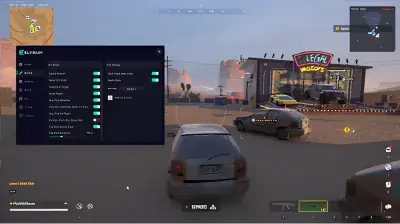
Rob Run’s world markers cover the objects that make a heist readable: loot, containers, security and objectives. The feature list describes markers and filters rather than a tool that completes a robbery. Keeping that boundary clear avoids expecting a camera label to disable a camera or a door label to unlock a vault.
Categories and minimum value
The world module marks dropped items and cash, loot bags, containers and cargo. Item icons and prices can appear alongside filters for weapons, ammo, armor, medicine, keys, tools and valuables. A minimum value filter changes what is displayed. Separate valuable-only browsing from a search for a specific tool or key.
A threshold that hides inexpensive objects may hide something needed for a task. If an expected marker is missing, check category and value conditions together. The supplied description does not establish fixed routes, guaranteed loot locations or reliable profit per run. Those claims would require current game evidence.
Objectives, entrances and stations
Safes, workbenches, hideout entrances, territory or capture points, heist objectives and NPC vendors or traders are listed. An entrance identifies a location; an objective identifies a task-related point. Neither confirms that your character has the key, tool or permission needed to use it.
A heist display can prioritize objectives and security while keeping unrelated loot categories quieter. A looting display can do the reverse. Save those decisions in configs. The radar guide explains the compact overview if world labels become difficult to read.
Cameras and security conditions
The module includes cameras, broken or disabled cameras and an optional coverage cone. Guard posts, alarms, security panels, doors, vault doors and medical cabinets are listed. State and coverage displays are information from the current module, not guarantees that an area is safe or unobserved.
For a missing camera marker, review the enabled security categories and relevant distance settings in the delivered interface. Avoid inventing a toggle because a guide mentions an object category. The current interface and instructions define the available settings.
Review before using a profile
Record enabled categories, value threshold, distances and battle-mode state when diagnosing the display. Battle mode can hide world labels during combat, so a reduction in markers may be intentional. A saved config makes comparison easier when support asks which settings produced an issue.
See the documented modules and buying/setup checklist before choosing access. The product is Steam only and requires supported Windows and Cloud DMA environments. Markers do not remove game-rule restrictions or account risk.